Minimize Shopware Migration Downtime
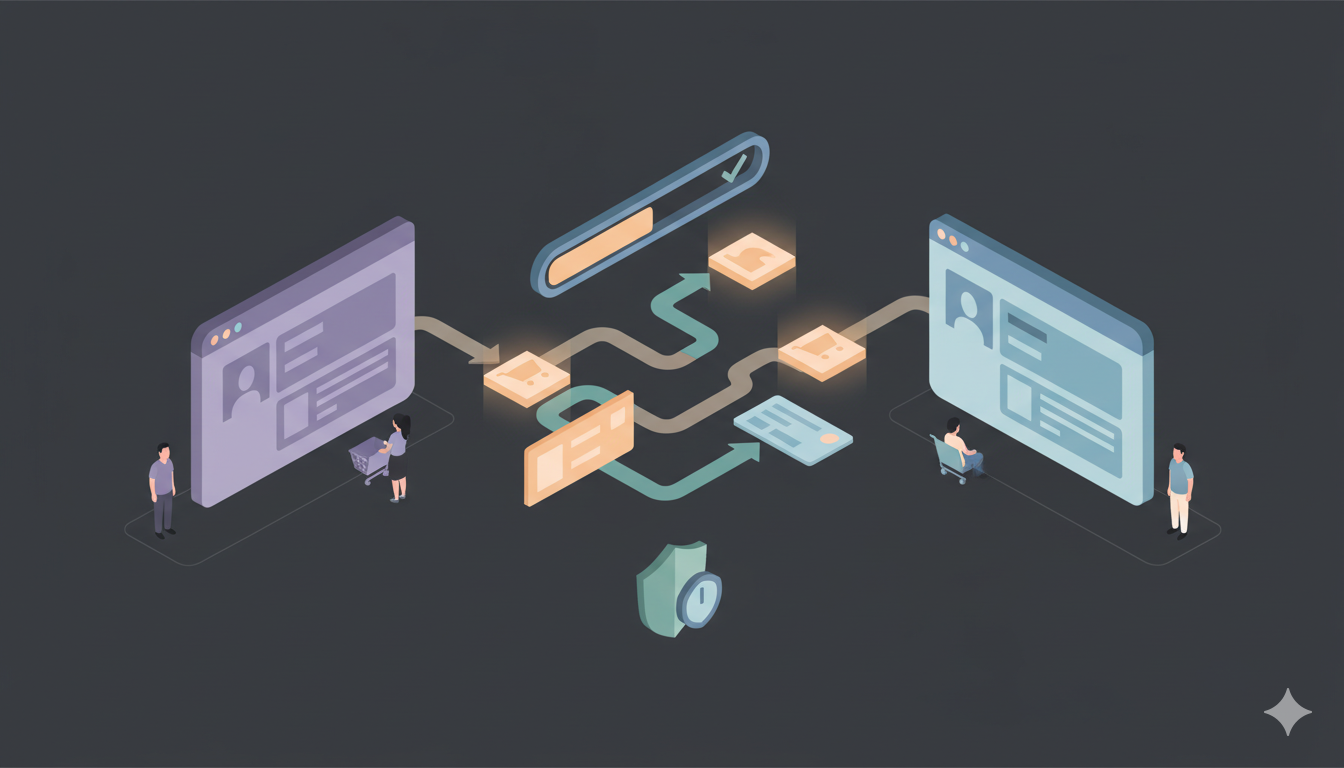
Downtime is the enemy of revenue. In the world of eCommerce, every minute your store is offline costs you sales, trust, and search engine rankings. The fear of "going dark" keeps many merchants stuck on outdated platforms. This guide reveals the professional workflow to migrate to Shopware with near-zero downtime, ensuring your business keeps selling while you move.
The Cost of Downtime: Why "Maintenance Mode" is Outdated
Traditionally, migrating meant putting up a "Under Construction" page for days. In 2025, this is unacceptable. Calculating your potential loss is simple: (Average Daily Revenue ÷ 24) × Hours Offline. But the hidden costs are worse:
- SEO Damage: Search crawlers hitting 503 errors can de-index your pages.
- Customer Trust: A site that is "down for maintenance" looks unstable to new visitors.
- Ad Spend Waste: If you forget to pause Google Ads, you pay for clicks that land on dead pages.
The modern approach, used by Shopware Migration Hub, utilizes a Live Transfer strategy. This means your current store remains 100% operational during the migration.
The Zero-Downtime Workflow
To achieve a seamless switch, we separate the Data Transfer from the Live Cutover. Follow this exact timeline to keep your store open.
Phase 1: The "Parallel" Setup (Days 1–5)
During this phase, your customers notice nothing. They continue to browse and buy on your old store (Source Cart).
- Step 1: Setup Target Shopware Store: Install Shopware on your hosting. Do not point your domain name there yet. Use a temporary subdomain or IP address for setup.
- Step 2: Perform Full Migration: Use Shopware Migration Hub to copy all your products, customers, and historical orders from the Source to the Target.
- Step 3: Design & Configuration: Since the Target store is not live, you can take your time customizing the theme, setting up shipping methods, and testing payment gateways.
Phase 2: The "Bridge" (The Critical Step)
While you were testing Phase 1, your live store likely received new orders and new customer registrations. If you switch now, you lose that data.
This is a specialized service from Shopware Migration Hub. It scans your Source Store for any data created after the Full Migration started and effectively "tops up" your Shopware store. It bridges the gap between the initial copy and the live launch.
Phase 3: The Switch (Minutes)
This is the only time you might need a brief maintenance window (15–30 minutes).
- Put Source Store in Maintenance Mode: This stops new orders from coming in on the old platform.
- Run "Recent Data Migration": Fetch the final batch of new orders/customers ensuring 100% data sync.
- Update DNS: Point your domain to your Shopware hosting (update A Record or CNAME).
- Remove Password Protection: Remove any maintenance mode or password protection to make your store publicly accessible.
- Launch: You are live!
Technical Checklist for Speed & Stability
Even with the right strategy, technical bottlenecks can cause delays. Optimize your Shopware store before you start.
1. Shopware Store Optimization
Shopware is self-hosted, so you control server settings. Optimize for performance:
- Image Optimization: Compress product images before migration to reduce import time. Shopware stores images in the media system.
- Category Structure: Organize your categories before migration to ensure clean data structure.
- Database Optimization: Ensure your MySQL database is optimized for large datasets. Increase PHP max_execution_time if needed.
- Test Import: Run a demo migration first to identify any data formatting issues.
2. The DNS "TTL" Trick
DNS propagation (the time it takes for the world to see your new site) can take up to 48 hours. You can shrink this to 5 minutes.
- Action: 48 hours before your planned launch, log into your domain registrar.
- Change: Find the TTL (Time to Live) setting for your A Record or CNAME.
- Set: Change it from 86400 (24 hours) to 300 (5 minutes).
Result: When you update your DNS records to point to Shopware on launch day, the world will see the new store almost instantly.
Troubleshooting Common Delays
The "Cold Start" Problem
Issue: Your new Shopware store is slow immediately after migration.
Fix: Shopware may need to cache content. Before opening to the public, browse your own site to warm up the cache. Enable Shopware's built-in caching (HTTP cache, Redis). Consider using a CDN for faster global access.
Missing Images (Hotlinking)
Issue: Images appear broken on the new site.
Fix: This often happens if you delete the old store too quickly. The new store might be "hotlinking" (reading) images from the old URL. Ensure your migration tool actually downloaded the media to Shopware's media system. Shopware Migration Hub handles this automatically, but manual CSV imports often miss it.
Database Timeout
Issue: Large catalogs fail to import or timeout.
Fix: Shopware uses a Symfony-backed MySQL database. For large catalogs, increase PHP max_execution_time and MySQL timeout settings. Automated migration tools handle this automatically, but if doing manual import, adjust these settings in php.ini and MySQL configuration.
Email Deliverability
Issue: Order confirmation emails go to Spam after migration.
Fix: Shopware uses configurable mail settings. Configure SMTP in Shopware's mail settings or use an SMTP plugin for better email delivery. Set up SPF/DKIM records for your domain if using custom email.
Conclusion
Downtime is a choice, not a requirement. By utilizing the Parallel Store Strategy and Recent Data Migration features offered by Shopware Migration Hub, you can switch platforms with the precision of a pit crew.
Don't risk your revenue. Start a Free Demo Migration today and see how we keep your business running while we move your data.