Automated Shopware Migration
In the early days of eCommerce, moving your store from one platform to another was a digital nightmare. It involved messy CSV files, broken images, and weeks of copy-pasting data. Today, technology has evolved. Automated migration has transformed this high-risk procedure into a secure, predictable, and streamlined process. This guide explores how automation works for Shopware migrations, why it is the industry standard for 2025, and how you can leverage it to move to Shopware without losing a single order.
What is Automated Migration to Shopware?
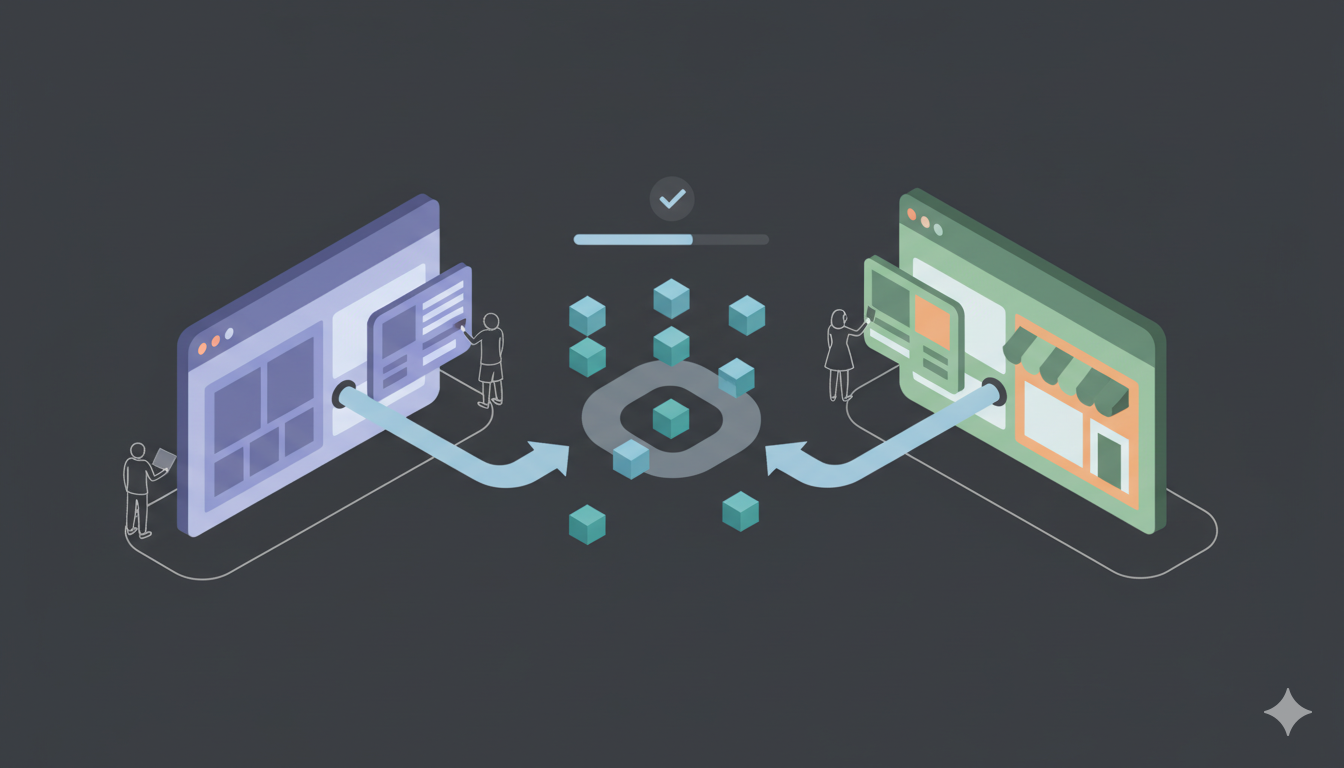
Automated migration to Shopware is the process of using specialized software to transfer data between your current eCommerce platform and Shopware without human intervention. Instead of manually exporting and importing CSV files, the software connects to the Source Store (e.g., Shopify, Magento, BigCommerce) via API and transfers data to Shopware using plugins or Store API.
Think of it as a digital pipeline. The software reads the data from your old store, translates it into a format Shopware understands (accounting for Shopware's Symfony entity structure and product variants), and writes it directly into your Shopware store. This ensures that complex relationships—like a specific customer being linked to a specific order history—are preserved perfectly.
The Evolution: Manual vs. Automated
To appreciate the power of automation, you must understand the limitations of the "Old Way."
| Feature | Manual Migration (CSV) | Automated Migration |
|---|---|---|
| Speed | Weeks or Months | Hours (1-5 hours average) |
| Accuracy | High risk of human error | Near 100% precision |
| Downtime | Store often in maintenance mode | Zero Downtime (Store stays live) |
| Technical Skill | Requires Excel/CSV expertise | No coding skills required |
| Symfony Architecture | Must handle manually | Handled automatically |
| Password Migration | Impossible manually | Supported with plugin |
Why Automation is the Safest Choice for Shopware
1. Zero Downtime (Keep Selling)
The biggest fear for merchants is "closing the doors" during a move. With automated tools like Shopware Migration Hub, your current store remains 100% live and functional throughout the process. The data transfer happens in the background on a cloud server. You continue to process orders and serve customers on your old platform until the very moment you are ready to switch your domain to Shopware.
2. Data Integrity & Relationships
Data is not just a list of items; it is a web of relationships.
Example: Order #1001 contains Product A and was bought by Customer B.
If you migrate via CSV manually, these links often break. You might get the Order, but it won't be linked to the Customer's profile. Automated migration uses "smart mapping" to ensure that when Order #1001 lands in Shopware, it is still linked to Customer B and Product A, preserving your analytics and history.
3. Shopware-Specific Format Handling
Shopware has specific Symfony entity structure and product variants that automated tools handle automatically:
- Category Mapping: Shopware uses "Categories" terminology. Automated tools map categories correctly.
- Product Options: Shopware supports unlimited product variants. Automated tools preserve complex option structures.
- Image Migration: Images are downloaded from source and uploaded to Shopware's media system automatically.
- Symfony Architecture: Data is structured to match Shopware's entity schema automatically.
- Password Migration: Customer passwords can be migrated with the plugin.
4. Password Migration Support
Important Advantage: Shopware DOES support password migration with the plugin. Automated tools can migrate customer passwords, preserving customer access. This is a significant advantage over hosted platforms that don't support password migration. Customers can log in immediately after migration without resetting passwords.
How It Works: The "Bridge" Architecture for Shopware
At Shopware Migration Hub, we utilize a secure "Connection Bridge" architecture specifically designed for Shopware's self-hosted platform. Here is the technical breakdown simplified:
- The Source Connector: We connect to your current store (e.g., Shopify, Magento) using its API key. This gives us "Read-Only" access to fetch data.
- The Target Connector: We connect to your Shopware store using a plugin installed on your Shopware installation. This plugin provides secure access to Shopware's Symfony architecture and Store API.
- The Cloud Engine: Our server sits in the middle. It pulls data from the Source, converts it into Shopware's format (handling Symfony entity structure and product variants), and pushes it to Shopware via plugin or Store API.
This method is secure because your data is not stored permanently on our servers—it just passes through the processing engine. The plugin is a small, secure file that you install on your Shopware server.
Step-by-Step: The Automated Workflow for Shopware
What does this look like for you? The process is designed to be a 3-step wizard.
Step 1: Configuration
You enter the URL of your old store and your new Shopware store. You provide API credentials or allow the tool to connect via plugin. You install the migration plugin on your Shopware installation (a simple upload process).
Step 2: Entity Selection & Mapping
You don't have to move everything. You get a checklist:
- Products & Categories
- Customers (Note: Passwords can be migrated with plugin)
- Orders & Taxes
- Reviews & Coupons
- Blog Posts (CMS Pages)
Advanced Mapping: This is where you map your old "Order Statuses" to Shopware statuses. For example, you can tell the system that "Awaiting Fulfillment" on your old cart should equal "Pending" in Shopware. The tool also handles product variants automatically, preserving Shopware's unlimited option support.
Step 3: Free Demo Migration
Before paying a cent, you run a Demo Migration. This moves a small sample of data (e.g., 20 products and customers) to your new Shopware store. This allows you to verify that images are loading, categories are correct, and product variants are displaying properly.
Step 4: Full Migration
Once you verify the demo, you launch the Full Migration. You can close your browser and turn off your computer. The cloud server handles the transfer. Depending on the size of your store, you will receive an email notification in a few minutes or hours when it is complete. Shopware's Symfony architecture efficiently handles large catalogs.
The "Recent Data" Challenge (And Solution)
Here is a common scenario: You start the Full Migration on Monday. It finishes on Monday afternoon. However, you spend the next 5 days customizing your Shopware store design and setting up payment gateways. During those 5 days, your old store is still live and taking orders.
If you launch your new store on Friday, you will be missing the orders from Monday to Friday. This is where automation shines again.
Shopware Migration Hub offers a feature called "Recent Data Migration." Just before you switch your domain and go live, you run this service. It scans your old store, identifies only the data created since the Full Migration, and adds it to Shopware. It prevents duplicates and ensures no sale is left behind.
Shopware-Specific Advantages of Automation
1. Handles Symfony Architecture Complexity
Shopware's Symfony architecture has specific table structures and relationships that are easy to get wrong manually. Automated tools structure the data correctly automatically, preventing import errors.
2. Unlimited Product Options
Shopware supports unlimited product variants per product. If you have products with multiple attributes (Size + Color + Material + Custom Text), automated tools preserve these fully, whereas manual CSV imports often fail or simplify incorrectly.
3. Category Mapping
Shopware uses "Categories" terminology. Automated tools map your category structure to Shopware categories automatically, preserving your product organization.
4. Image Handling
Automated tools download images from your source store and upload them to Shopware's media system automatically. Manual CSV imports only handle image URLs, which often break.
5. Password Migration
Shopware supports password migration with the plugin. Automated tools can migrate customer passwords, preserving customer access—a significant advantage over platforms that don't support this.
Conclusion
Automated migration has democratized re-platforming to Shopware. It is no longer a luxury service reserved for enterprise brands with massive IT budgets. Whether you are a small boutique moving from Etsy or a scaling brand leaving Magento, automation provides a secure, affordable, and accurate path to Shopware.
By removing human error and the need for entity structure expertise, tools like Shopware Migration Hub allow you to focus on what really matters: customizing your Shopware store design and welcoming your customers to a better experience.
Ready to automate your move to Shopware? Start your Free Demo Migration today.