Manual vs Automated Migration
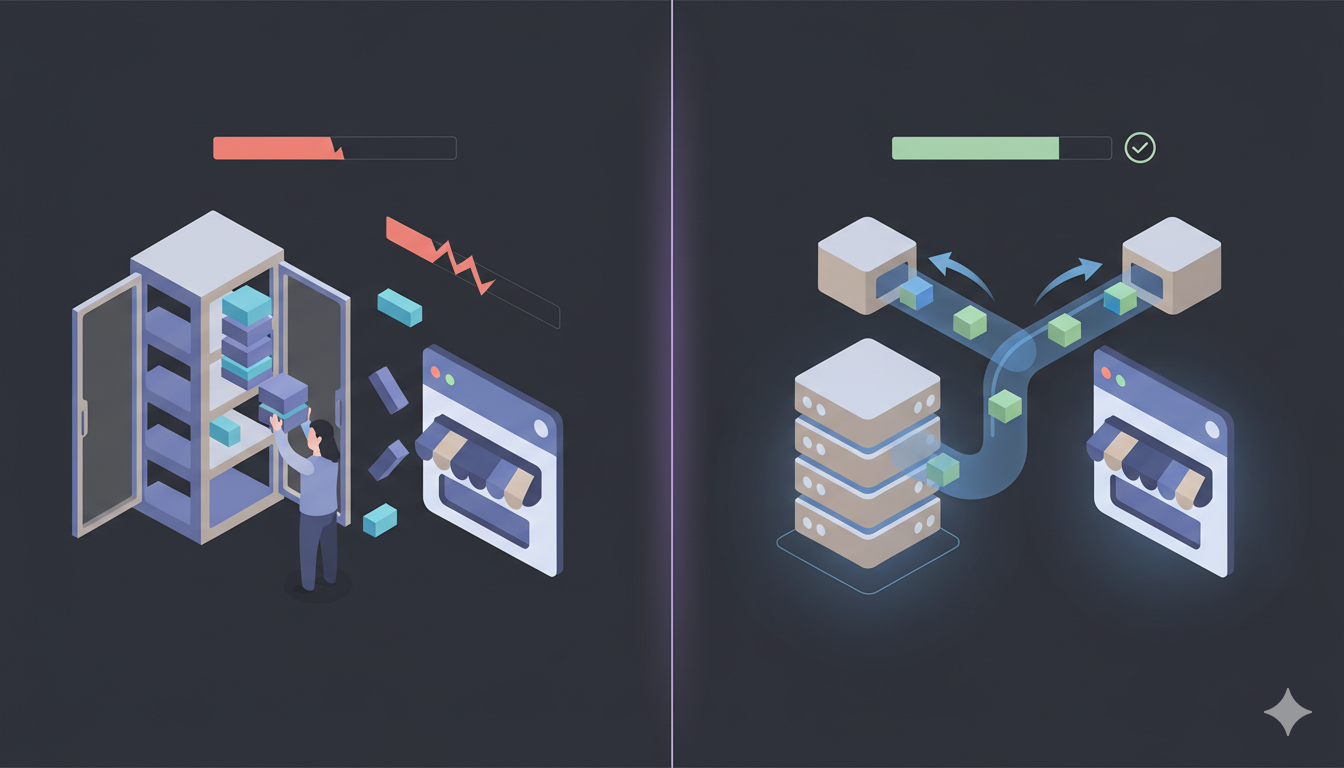
There are two ways to move a house: You can pack every box yourself, rent a truck, and spend a week lifting heavy furniture (and potentially breaking your back). Or, you can hire professional movers who wrap, pack, and transport everything in a single afternoon while you drink coffee. In the world of eCommerce, Manual Migration is the DIY truck, and Automated Migration is the professional service.
This guide compares these two methods specifically for Shopware migrations to help you decide which is right for your store.
The Core Difference
Manual Migration involves human intervention at every step. It usually requires exporting data to CSV (Excel) files, manipulating the columns to match Shopware's format, and importing them using Shopware's built-in CSV import feature. It is prone to human error, data mismatching, and Shopware's entity structure complexity.
Automated Migration uses software to create a direct bridge between your old store and Shopware. It transfers data programmatically via plugins or Store API, preserving the complex relationships between products, orders, and customers without human input, while automatically handling Shopware's Symfony entity structure and product variants.
Detailed Comparison Table
| Feature | Manual Migration (CSV/DIY) | Automated Migration (Tool) |
|---|---|---|
| Time Required | Weeks to Months | Hours (1–10 Hours) |
| Cost | Free (monetary) / High (time & labor) | Low ($69–$300 on average) |
| Technical Skill | High (Requires Excel mastery, CSV formatting, Symfony knowledge) | None (Wizard-based) |
| Data Accuracy | Low (High risk of broken links) | High (Near 100%) |
| Downtime | Store usually in "Maintenance Mode" | Zero (Store stays live) |
| Symfony Architecture | Must handle manually (error-prone) | Handled automatically |
| Product Options | Often breaks (complex structure) | Preserved automatically |
| Passwords | Impossible manually | Supported with plugin |
Deep Dive: The Risks of Manual Migration to Shopware
Many merchants choose manual migration believing it is "free." However, hidden costs often arise from these common pitfalls specific to Shopware:
1. The "Broken Link" Nightmare
Data in eCommerce is relational. An Order is not just a line of text; it is linked to a specific Customer ID and multiple Product IDs.
When you export Orders to CSV, these IDs often change upon import to Shopware. The result? You might import 1,000 orders, but they are all "orphaned"—not linked to the customers who bought them. This breaks your reporting and customer account history.
2. The Image Dilemma
CSV files contain text, not images. They only contain links to images.
If you shut down your old store before the import is finished, those links die, and your new Shopware store displays thousands of broken image icons. Manual migration requires you to download all media physically and re-upload it to Shopware's media system—a massive task for stores with over 500 products.
3. Shopware Symfony Database Errors
Shopware's Symfony architecture has specific table structures and relationships. If your CSV doesn't match exactly, the import will fail or create incorrect data. Common issues include:
- Wrong column headers (Shopware uses specific field names)
- Incorrect date formats
- Missing required fields
- Product option format errors (Shopware supports unlimited options)
- Category hierarchy issues
Automated tools structure the data correctly automatically, preventing these errors.
4. Product Options Complexity
Shopware supports unlimited product variants per product. If you have products with multiple attributes (e.g., Size + Color + Material + Custom Text), manual CSV imports often fail completely or lose option relationships. Automated tools preserve complex option structures fully.
5. Categories Structure
Shopware uses "Categories" terminology with hierarchical support. Manual CSV imports require you to understand and use Shopware's category structure correctly. Automated tools map categories automatically.
6. SEO Suicide
Manual migration rarely handles 301 redirects automatically. If you forget to manually create a redirect for every single product URL, Google will see your new site as full of "404 Not Found" errors. This can wipe out your search rankings overnight.
7. Password Migration
Shopware supports password migration with the plugin, but this is impossible to do manually. Manual migration means all customers must reset their passwords, causing friction and potential customer loss.
Deep Dive: The Power of Automation for Shopware
Automated migration tools (like Shopware Migration Hub) are built to solve the complexity of data relationships and Shopware's Symfony entity structure.
1. "Smart Mapping" Technology
Automation tools don't just copy-paste; they translate. The software understands that a "Variant" in Shopify is a "Product Option" in Shopware. It maps these definitions automatically so that a Red T-Shirt Size L lands in the correct option structure. It also preserves Shopware's product variant system support.
2. Shopware Symfony Database Handling
Automated tools automatically structure your data to match Shopware's exact entity schema. This includes:
- Correct table relationships
- Proper foreign key mapping
- Category hierarchy preservation
- Product option structure
- Image path handling
3. Security & Passwords
Important Advantage: Shopware DOES support password migration with the plugin. Automated tools can migrate customer passwords, preserving customer access. This is a significant advantage over platforms that don't support password migration. Customers can log in immediately after migration without resetting passwords.
4. The Cost of Your Time
Consider this equation:
Automated Migration: $150 Service Fee + 1 Hour Setup = $200 Cost
Automation is typically 10x cheaper when you factor in the value of your labor, and it handles Shopware's Symfony entity structure automatically.
Which Method is Right for You?
Choose Manual Migration IF:
- You have fewer than 100 simple products with no options.
- You want to completely clean your data and start from scratch (not keeping history).
- You have zero budget but unlimited free time.
- You are comfortable with Excel, CSV formatting, and Symfony entity structure.
- You don't need to preserve customer passwords.
Choose Automated Migration IF:
- You have more than 500 products/orders.
- Your historical data (customer orders) is valuable to your business.
- You cannot afford downtime or maintenance mode.
- You want to preserve your SEO rankings.
- You have products with complex options (automated tools preserve Shopware's product variants).
- You want to preserve customer passwords (requires plugin).
- You value your peace of mind and want Shopware's Symfony entity structure handled automatically.
Don't risk your data. Run a Free Demo Migration with Shopware Migration Hub today and see the difference automation makes for Shopware migrations.